
Why Screen Time Can Feel Hard on Your Eyes
Phones, tablets, computers, and televisions are part of everyday life. Although screens are not usually harmful when used responsibly, long periods of close-up viewing can make your eyes feel tired or uncomfortable.
Common signs of screen-related eye strain include:
– Dry or watery eyes
– Blurred vision after looking at a screen
– Sore or tired eyes
– Headaches
– Difficulty focusing
– Neck and shoulder tension
These symptoms often come from a combination of factors, such as staring at one distance for too long, blinking less often, using poor lighting, or sitting in an uncomfortable position. A few simple changes can make screen use more comfortable.
Follow the 20-20-20 Rule
One of the easiest habits to add to your day is the 20-20-20 rule. Every 20 minutes, look at something about 20 feet away for at least 20 seconds.
Looking into the distance gives your eyes a break from focusing on a nearby screen. It also encourages you to pause, relax your face, and change your posture.
If you find it difficult to remember, try one of these reminders:
– Set a repeating timer on your computer or phone.
– Use a break reminder app.
– Take a short stretch break whenever you finish a task.
– Look out a window during natural pauses in your work.
– Use meetings, phone calls, or printing tasks as opportunities to step away.
The goal is not perfection. Regular short breaks are more useful than waiting until your eyes already feel tired.
Adjust Your Screen Setup
A comfortable workstation can reduce strain on your eyes, neck, and shoulders. Start by placing your screen at a suitable distance and height.
Keep the Right Distance
Place a computer monitor about an arm’s length away. You should be able to read text without leaning forward or squinting. If you regularly move closer to see the screen, increase the font size instead of bringing the monitor nearer.
For phones and tablets, avoid holding the device extremely close to your face. When possible, use a stand or rest the device on a stable surface so you can maintain a comfortable viewing distance.
Set a Comfortable Height
The top of your monitor should be near eye level or slightly below it. This allows you to look gently downward at the center of the screen instead of tilting your head up.
A laptop stand, monitor riser, or a few sturdy books can help adjust the screen. If you raise a laptop, use a separate keyboard and mouse so your arms and shoulders remain comfortable.
Reduce Glare
Bright reflections can make it harder to see the screen and may cause you to squint. Position your monitor away from direct sunlight and strong overhead lights.
You can also:
– Close blinds during bright parts of the day.
– Adjust the angle of your monitor.
– Use a matte screen filter if reflections remain a problem.
– Wipe the screen regularly with a soft, suitable cloth.
– Avoid placing a bright window directly behind or in front of the screen.
Adjust Brightness, Text, and Contrast
Your screen should not look like a bright lamp in a dark room. At the same time, it should not be so dim that you need to strain to read.
Adjust the brightness so it feels similar to the surrounding room. Many devices offer automatic brightness controls, but you can also change the setting manually.
Increasing text size is often more helpful than moving closer to the screen. Choose a clear font and use strong contrast between text and its background. Dark text on a light background works well for many people, while dark mode may feel more comfortable in a dim environment.
Experiment with display settings until you can read comfortably without squinting. Remember that comfortable settings may change depending on the time of day and the lighting in the room.
Blink More Often
People often blink less frequently when concentrating on a screen. Blinking helps spread moisture across the surface of the eyes, so fewer blinks can leave them feeling dry or irritated.
Try making blinking part of your screen routine:
– Take a few slow, complete blinks during each break.
– Relax your forehead and jaw while reading.
– Avoid staring continuously at one point.
– Pause briefly after sending an email or finishing a paragraph.
If dry air makes your eyes feel uncomfortable, consider improving the room’s airflow and avoiding a fan or air vent blowing directly toward your face.
Use Good Room Lighting
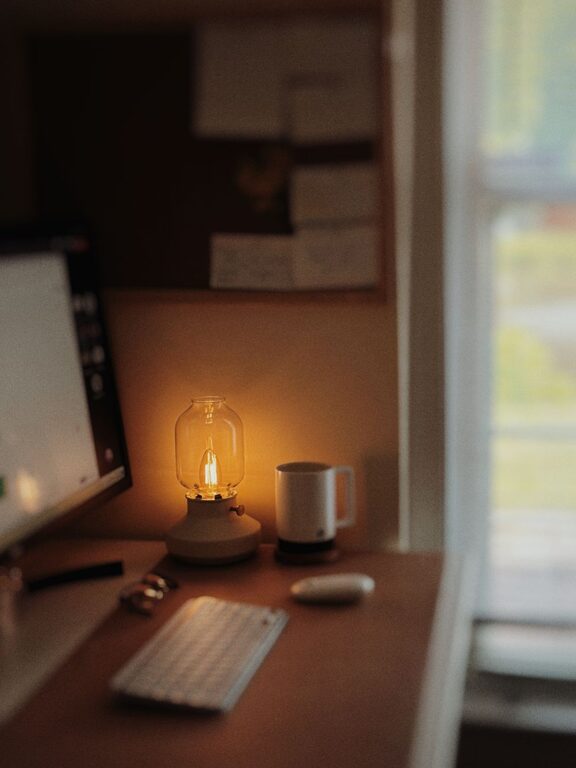
Working in a completely dark room with a bright screen can feel uncomfortable. Instead, use soft, even lighting that lets you see the room without creating reflections on the display.
A desk lamp can be helpful when reading printed material, but position it so the light shines on the page rather than directly into your eyes or onto the screen. Natural light is useful too, as long as it does not create glare.
Try to keep the brightness of your screen and the rest of the room reasonably balanced. You may need different settings in the morning, afternoon, and evening.
Plan Screen-Free Breaks
Short breaks throughout the day can help you reset your eyes and body. During longer work sessions, stand up, walk around, stretch, or complete a task that does not require a screen.
You can also create screen-free periods at home by:
– Eating meals without a phone nearby
– Taking walks without checking notifications
– Listening to music or podcasts instead of watching videos
– Reading a printed book for part of the evening
– Keeping screens out of reach during bedtime routines
These changes can make it easier to avoid long, uninterrupted sessions.
Remember the Rest of Your Body
Eye comfort is connected to your overall setup. Poor posture can create tension that contributes to headaches and discomfort while using screens.
Keep both feet supported, relax your shoulders, and position your keyboard and mouse so your wrists stay fairly straight. Change positions regularly rather than trying to hold one “perfect” posture all day.
For children, encourage regular breaks, comfortable viewing distances, and outdoor or non-screen activities. Adults can benefit from the same habits.
When to Seek Professional Advice
Occasional tiredness after a long screen session is common. However, ongoing or worsening discomfort should not be ignored. Consider speaking with an eye care professional if you experience persistent blurry vision, frequent headaches, significant pain, unusual sensitivity to light, or symptoms that continue after taking regular breaks.
A professional can help determine whether your screen setup, vision needs, or another factor may be contributing to the problem. Avoid relying on discomfort alone to choose glasses or other products.
Build a Comfortable Screen Routine
Protecting your eyes during screen time does not require giving up digital devices. Focus on consistent habits: take regular distance breaks, blink often, reduce glare, adjust text size, and keep your workstation comfortable.
Small changes are easier to maintain when they fit naturally into your day. With a better setup and more frequent breaks, you can make screen use more comfortable at work, at home, and on the go.
About the Author